
BROWSE SAFELY THIS HOLIDAY SEASON: WHY EXTRA CAUTION MATTERS |
|
As the holiday season approaches—especially the high-traffic period around Black Friday and Cyber Monday—the internet transforms into a giant digital mall. Every website seems to offer a limited-time deal, every social media feed fills with targeted ads, and inboxes overflow with promotions, flash sales, and “exclusive early access” offers. It’s an exciting time for shoppers, but also a profitable season for cybercriminals. Attackers know that people are hunting for deals, often shopping from multiple devices, and making quick decisions, sometimes late at night and under pressure to grab an item before it sells out. This creates the ideal storm for online scams. Where consumers see opportunity, cybercriminals see vulnerability. Even careful shoppers can be caught off guard, especially when browsing unfamiliar websites or responding quickly to a promotional email. That’s why conscious, careful browsing becomes not just a recommendation but a necessity during this time of year. Protecting your personal information, financial accounts, and business devices starts with slowing down, paying attention, and knowing what to look for. Why the Holiday Season Is a Magnet for Cybercrime Cybercriminals are strategic. They understand human behavior, and they design their schemes to fit perfectly into seasonal habits. One of the biggest factors working in their favor is the sense of urgency created by holiday marketing. When you see a countdown timer ticking away or a message claiming that “only 3 items remain,” your instinct is to act immediately. This natural reaction—known as “scarcity pressure”—can override your normal caution and make you more likely to click without verifying. Attackers exploit this by creating phishing emails that mimic well-known stores, complete with logos, fonts, and styles that look identical to legitimate promotions. For instance, a scam email may claim you’ve been approved for a special holiday discount, or it may pretend to confirm a purchase you never made, pushing you to click a link to “review your order.” These emails often look so real that even experienced online shoppers fall for them. Shipping-related scams also skyrocket during the holiday season. Packages are constantly on the move, and attackers take advantage of the confusion. |
A common trick is sending a text message pretending to be from FedEx, UPS, or the postal service, claiming that your package couldn’t be delivered. The message includes a link to “reschedule delivery,” but clicking it takes you to a malicious website that may install malware or ask for personal information. Meanwhile, scam websites also flourish, offering “too good to be true” deals. Cybercriminals know people are desperate to find sold-out electronics, limited-edition toys, and last-minute gifts. They create websites that appear professional on the surface but exist only long enough to collect payments and disappear. Some of these sites use advanced tactics such as fake customer reviews, AI-generated product descriptions, and countdown timers to seem legitimate—making it harder than ever to distinguish real from fake. All of this is compounded by the fact that people shop on more devices during the holidays—phones, work laptops, home computers, and tablets—often while multitasking or traveling. Each device creates an additional point of vulnerability if not properly secured. How to Recognize a Malicious or Suspicious Website Spotting a malicious website is becoming more difficult as cybercriminals improve their design skills. Still, even the most convincing fake sites usually leave subtle clues. The key is learning to recognize them before you enter personal or financial information. One of the most obvious red flags is unusually steep discounts. If a top-selling product that’s out of stock everywhere else appears on an unfamiliar website for a price that seems impossibly low, that’s a strong sign of fraud. Real retailers rarely sell premium items at extreme markdowns without making headlines. Scam sites rely on emotion: excitement, urgency, and the fear of missing out. Another warning sign is the website’s URL. Attackers often register addresses that are close to real brand names but with minor differences. For example, a site claiming to be Best Buy might use best-buy-online.shop instead of bestbuy.com. Others replace letters with numbers, such as amaz0n instead of amazon. Browsers on mobile devices make it even harder to see the full URL, so you may have to tap the address bar to examine it closely. |
Security indicators are also important. While the presence of HTTPS and a padlock icon doesn’t guarantee a site is legitimate (since scammers can obtain basic SSL certificates too), the absence of these indicators is a clear signal that you should leave immediately. If your browser warns you that a site is “Not Secure,” or if it displays security alerts, never continue to enter payment or login information. Beyond that, take a moment to look at the site’s overall quality. Scam websites often have inconsistencies—spelling mistakes, awkward grammar, low-resolution photos, or product descriptions that feel copied from other sites. Pages may load slowly, certain buttons may not work, or pop-ups may appear asking for permissions you wouldn’t expect, such as access to your location or device information. Legitimate retailers typically provide professional customer support information, including a phone number, physical address, and clear return policies. Fake sites tend to list vague or generic contact details, and emails may bounce or never receive a reply. If the “contact us” page only contains a form with no direct email or phone number, proceed with caution. Keeping Your Computer and Accounts Safe While Browsing Even with careful browsing habits, mistakes can happen. That’s why it’s equally important to make sure your device and online accounts are protected, especially when you’re shopping frequently. Keeping your operating system and web browser updated is one of the easiest yet most critical steps. Updates often contain patches for security vulnerabilities that cybercriminals actively look to exploit, particularly during high-traffic seasons when many people are browsing from outdated devices. Antivirus or endpoint protection software adds another essential layer of defense. These tools can block dangerous websites, detect suspicious downloads, and warn you about known malicious links. Modern endpoint protection doesn’t just look for viruses; it uses behavioral analysis to detect unfamiliar or abnormal activity, such as programs trying to install silently in the background. Enabling multi-factor authentication (MFA) on your online accounts is another powerful security measure. Even if your password is stolen—through a fake login page, a data breach, or malware—MFA ensures that the attacker still can’t access your account without your second verification step. This simple habit drastically reduces your risk. |
Secure DNS or web-filtering services provide additional safety by preventing your browser from reaching known malicious domains. These tools work quietly in the background, acting as a safety net in case you accidentally click on a harmful link. Using public Wi-Fi during holiday shopping can also increase your risk. Attackers sometimes set up fake Wi-Fi networks in busy places like malls or airports with names such as “Free Holiday Wi-Fi” or “Guest Network.” When you connect, they can intercept data such as login details or credit card information. If you must shop or log in remotely, use a VPN or wait until you’re on a secure connection. Smart, Safe Online Shopping Habits for the Holidays Technical protections help, but your daily habits and awareness play an equally important role. One of the most effective habits is to avoid clicking on promotional links from emails or text messages, even if the message appears legitimate. Instead of clicking, type the retailer’s website directly into your browser or use their official mobile app. This reduces the chance of being funneled into a fake website designed to mimic the real one. Sticking with trusted retailers or well-known marketplaces is another safe practice. Purchasing from unknown sellers—especially those advertising heavily on social media— carries greater risk. Many scam networks use AI-generated ads to lure shoppers to fraudulent stores that vanish after a few weeks. Payment methods matter too. Credit cards provide stronger protections than debit cards, which are directly tied to your bank account. Some banks even offer virtual card numbers that you can use for online purchases—these temporary numbers reduce your exposure if a website is compromised. Make a habit of checking your financial accounts more frequently during the holiday season. With so many transactions happening at once, it can be easy to overlook unauthorized charges. Early detection allows you to report and resolve issues quickly. Lastly, ensure you’re using strong, unique passwords for your online shopping accounts. Reusing passwords across multiple sites means that a breach in one place can lead to stolen credentials everywhere else. A password manager can make this easy, handling password generation and storage securely. Keeping all of these precautions in mind can ensure you have a safe holiday shopping season |
 |
The holiday season—especially Black Friday and Cyber Monday—is prime time for online scams. Cybercriminals create fake websites, send phishing emails, and push deceptive ads to take advantage of rushed shoppers. Stay safe by double-checking URLs, avoiding “too good to be true” deals, and sticking with trusted retailers. Make sure your devices are updated, use antivirus protection, enable MFA, and avoid shopping on public Wi-Fi unless you’re using a VPN. Use credit cards instead of debit cards, monitor your accounts frequently, and never click links in unexpected emails or texts. Slowing down and verifying before you buy is the best defense against holiday cyber threats. |
THE SMB GUIDE TO MAKING YOUR WEBSITE AND DOCUMENTS DIGITALLY ACCESSIBLE |
| Make Your Visuals and Documents Accessible for All
Visual accessibility is often overlooked, but millions of people live with visual impairments. Ensuring your content is visually accessible can make a huge difference. Text should stand out clearly against its background, with a contrast ratio of at least 4.5:1, which can be checked using free tools like WebAIM’s Contrast Checker. When creating or sharing documents such as PDFs, make sure they are tagged with structured information including headings, paragraphs, and tables. This allows screen readers to interpret the content correctly. Images should include descriptive alt text, giving context for users who rely on assistive technologies. Additionally, make sure your content follows a logical reading order—the flow should make sense even when read aloud by a screen reader. A quick accessibility test, such as using a screen reader yourself or checking keyboard navigation, can reveal issues that may otherwise go unnoticed. Small tweaks here can make your website and documents significantly more usable for everyone. Make Reading Easier and Reduce Mental Effort Accessibility isn’t only about visuals; it’s also about how your content is written and structured. Using plain language and avoiding unnecessary jargon or overly complex sentences makes your content easier to understand. Break information into short paragraphs, supported by descriptive subheadings, so readers can scan and digest content quickly.
|
Font choice also matters. Sans-serif fonts like Arial, Verdana, or Helvetica are generally easier to read on screens. Body text should be at least 14 points, and avoid using all caps, italics, or overly decorative fonts for long passages. For multimedia content, provide captions or transcripts for audio and video, which benefits not only deaf or hard-of-hearing users but also those who prefer to read rather than listen.
Keyboard accessibility is equally important. Users with limited mobility often navigate websites without a mouse, so ensure that every interactive element— menus, forms, buttons—can be accessed via keyboard alone. Avoid requiring fine motor skills for essential interactions, such as dragging or resizing small elements. These small changes reduce friction and make your site usable by more people. Make Accessibility Part of Your Brand For small and medium-sized businesses, accessibility isn’t just a technical requirement—it’s a strategic investment in reputation, customer trust, and inclusivity. A website that works for everyone signals that you value all customers, creating positive brand perception and loyalty. It can also protect your business legally, as accessibility standards like the Americans with Disabilities Act (ADA) and the Web Content Accessibility Guidelines (WCAG) apply to many websites.
|
HELPFUL KEYBOARD SHORTCUTS |
|
How Simply Keyboard Shortcuts Can Save you Time and Money! When you’re working on a computer, mastering a few keyboard shortcuts can save time, reduce repetitive mouse movements, and make daily tasks much easier. Here are some of the most useful shortcuts for Windows and Mac users: 1. Copy, Cut, and Paste The classic trio: Windows: Ctrl + C (Copy), Ctrl + X (Cut), Ctrl + V (Paste) Mac: Command + C, Command + X, Command + V These shortcuts help you move text, files, or images quickly without relying on right-click menus. 2. Undo and Redo Made a mistake? Undo it instantly: Windows: Ctrl + Z (Undo), Ctrl + Y (Redo) Mac: Command + Z (Undo), Command + Shift + Z (Redo) This is useful in documents, spreadsheets, emails, and many apps. 3. Switch Between Open Applications Quickly navigate between multiple programs: Windows: Alt + Tab. Mac: Command + Tab This lets you move between windows efficiently without minimizing or closing anything. |
4. Take Screenshots Capture your screen for instructions, presentations, or troubleshooting: Windows: Win + Shift + S (select area), or Print Screen (full screen) Mac: Command + Shift + 4 (select area), Command + Shift + 3 (full screen) Screenshots are a helpful way to explain with an image rather than words.
5. Select Everything or Search Select all: Ctrl + A (Windows), Command + A (Mac) Search: Ctrl + F (Windows), Command + F (Mac) Whether you’re working in a document or browsing a website, these shortcuts save time finding and selecting content. Even learning just a few of these shortcuts can significantly speed up your workflow and reduce frustration.
Using all of these shortcuts and keyboard tricks can easily help save you time and money when doing daily functions. |
WEB CONTENT FILTERING: WHAT IT IS, HOW IT WORKS, AND WHY YOUR SMALL BUSINESS NEEDS IT |
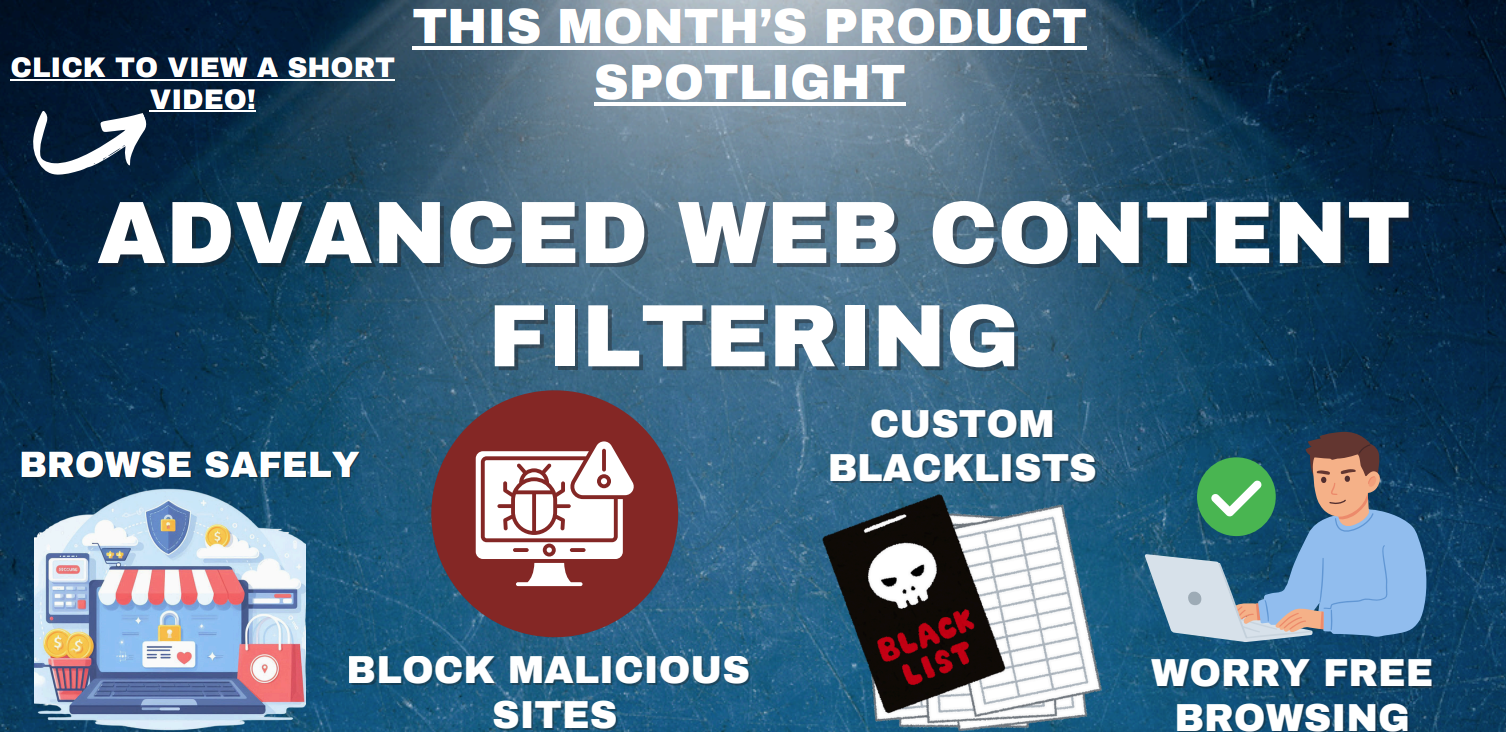
| In today’s connected world, the internet is essential for small businesses, powering communication, collaboration, research, and marketing. But it also brings risks. Employees can accidentally or intentionally access malicious websites, inappropriate content, or non-work related sites, putting your business data and productivity at risk. Web content filtering is a crucial tool that helps protect your network, staff, and reputation.
What is Web Content Filtering? Web content filtering is a technology that monitors and controls the websites users can access on your network. It works by analyzing web traffic in real time and enforcing rules about which sites or types of content are allowed or blocked. Filters can be based on categories—such as adult content, gambling, social media, or malware-hosting sites—or by specific URLs. Many solutions also prevent risky file downloads, block malicious ads, and restrict access to certain applications, helping employees use the internet safely while reducing exposure to threats. How Web Content Filtering Works There are several ways web content filtering operates. Cloud-based filters scan traffic as it leaves the network, blocking unsafe content before it reaches a device. Some operate at the network gateway, filtering traffic through your router or firewall, while others can control access at the device level. Modern solutions often incorporate AI driven threat detection, dynamically identifying suspicious websites and new threats, which provides a layer of protection beyond static blacklists. |
Benefits for Small Businesses Security Security is the most immediate advantage. Blocking access to known malware and phishing sites prevents infections and potential data breaches, which can be costly and disruptive for small businesses. Filtering also helps ensure compliance with industry regulations, particularly in sectors such as finance, healthcare, and education, where restricting certain types of content is legally or contractually required. Productivity is another key benefit. Without filtering, employees may spend excessive time on non-work-related sites like social media, streaming services, or shopping. By limiting access to inappropriate or distracting websites, businesses can maintain focus and make better use of network bandwidth for essential tasks. Finally, web content filtering provides visibility and control. Business owners and IT partners like FCS can see which websites are being accessed, adjust policies for different teams, and proactively address security or productivity risks. This ensures staff have the access they need while keeping the organization protected and efficient. Do Small Businesses Actually Need Web Content Filtering? In summary, web content filtering is a vital tool for small businesses. By monitoring web traffic and enforcing access rules, it protects against malware, phishing, and other online threats, enhances productivity, supports compliance, and provides visibility into network usage. For any small business that relies on the internet, web content filtering is not just a technical measure—it’s an investment in security, efficiency, and long-term success.
|
WHY SMALL BUSINESSES BENEFIT FROM USING MICROSOFT AZURE |
|
For small businesses, managing technology can be challenging. Unlike larger organizations with dedicated IT teams and substantial budgets, small companies often have to balance productivity, security, and cost with a limited staff. Microsoft Azure offers a solution by giving small businesses access to enterprise-level infrastructure, tools, and security features without the complexity or expense of maintaining their own servers. Instead of worrying about hardware failures, software updates, or unexpected downtime, businesses can rely on Azure’s cloud environment to keep operations running smoothly and securely. This allows business owners and staff to focus on growth, customer service, and innovation, rather than constantly troubleshooting IT problems. One of the most compelling benefits of Azure is its reliability. Traditional on-premise servers can fail due to hardware issues, power outages, or human error, often causing costly downtime. With Azure, data and applications run on Microsoft’s globally distributed data centers, meaning your systems are supported by redundant infrastructure designed to minimize interruptions. Even if a local outage occurs, operations can continue without disruption. For small businesses, this kind of uptime—
|
once only available to large corporations with multiple data centers—is now within reach.
Security is another area where Azure provides significant advantages. Small businesses are increasingly targeted by cybercriminals because attackers assume they have weaker protections than large enterprises. Azure offers advanced security features such as automatic updates, encryption, identity management, threat detection, and compliance tools. It continuously monitors for suspicious activity and helps prevent unauthorized access to sensitive business data. For example, features like multi-factor authentication and conditional access policies ensure that only verified users can access systems and files. By providing enterprise-grade security without the need for a dedicated IT security team, Azure helps small businesses protect their most valuable assets with minimal effort. Scalability is a third major benefit of using Azure. Unlike traditional hardware, which must be purchased upfront and replaced every few years, Azure allows businesses to scale resources up or down on demand. Whether a company experiences seasonal growth, launches a new product, or needs additional storage for an expanding client base, Azure can quickly adapt. This flexibility not only ensures optimal performance but also prevents unnecessary spending on unused hardware. Conversely, during slower periods, businesses can reduce resources and pay only for what they actually use. |
This dynamic approach gives small businesses the flexibility to grow at their own pace without being limited by infrastructure constraints.
Azure also modernizes the way small businesses operate. Employees can securely access files, applications, and collaboration tools from anywhere, on any device. Integration with Microsoft 365, Teams, OneDrive, and virtual desktops allows teams to work remotely or across multiple locations without compromising security or productivity. Instead of emailing documents back and forth or storing files on individual computers, data is centralized, accessible, and protected in the cloud. This capability not only streamlines day-to-day operations but also positions small businesses to meet modern workforce expectations, such as remote work, hybrid collaboration, and instant access to resources. To summarize, the core benefits of Azure for small businesses include:
|
By leveraging Azure, small businesses can focus less on IT challenges and more on achieving their goals, serving customers, and preparing for long-term success. For many companies, adopting Azure isn’t just a technical upgrade—it’s a strategic step toward resilience, growth, and staying competitive in an increasingly digital marketplace.  |
We Love ReferralsThe greatest gift anyone can give us is a referral to another business in need of IT services. Referrals help us keep costs down so we can pass the savings to our clients.If your referral ends up becoming a client - we’ll gift them their first month of service at no charge AND we’ll gift you a $500 Amazon Gift Voucher.Simply introduce me via email to stan@fcskc.com and I’ll take it from there. I personally promise we’ll look after your referral's business with a high level of care and attention (just like we do with all our clients).-Stan |
We Want Your FeedbackHere at Ferguson Computer Services, we value your feedback greatly and would appreciate if you took time from your busy schedule to leave us a review. These reviews let us know what we are doing well and what we might be able to improve on in the future.
|
Technology Trivia TimeTechnology Trivia Question of the Month! Send the correct answer to winner@fcskc.com to be entered to win a $50 gift card to Amazon.Here is November's question of the month:Can a website URL be a red flag for a malicious website? |

 |
